Google Contacts
LiveSign in with Google and keep your Google address book two-way synced with your cloud contact list, forever.
- Name
- Photo
- Phone numbers
- Emails
- Postal address
- Company
- Birthday
- Notes
Log in to each service through its official, secure authorisation screen. We only request permission to read your contacts — never to post, message or change anything.
Available sources
Every network exposes a different amount of detail. Here is exactly what ContactsCloud can capture from each one.
Sign in with Google and keep your Google address book two-way synced with your cloud contact list, forever.
Upload a CSV or vCard export from any phone, CRM or address book and map the columns to your contact fields.
Authorise Facebook once and pull your friends list with names, profile photos and any contact details they share.
Import the people you follow, including handles, display names, avatars, bios and linked websites.
Bring across your WhatsApp address book from an exported backup, matched against contacts you already store.
Sync your professional network with job titles, employers and industries kept up to date automatically.
Connect a work or personal Microsoft account and merge your Outlook address book with everything else.
Keep your iPhone address book aligned with your cloud contact list through iCloud sync.
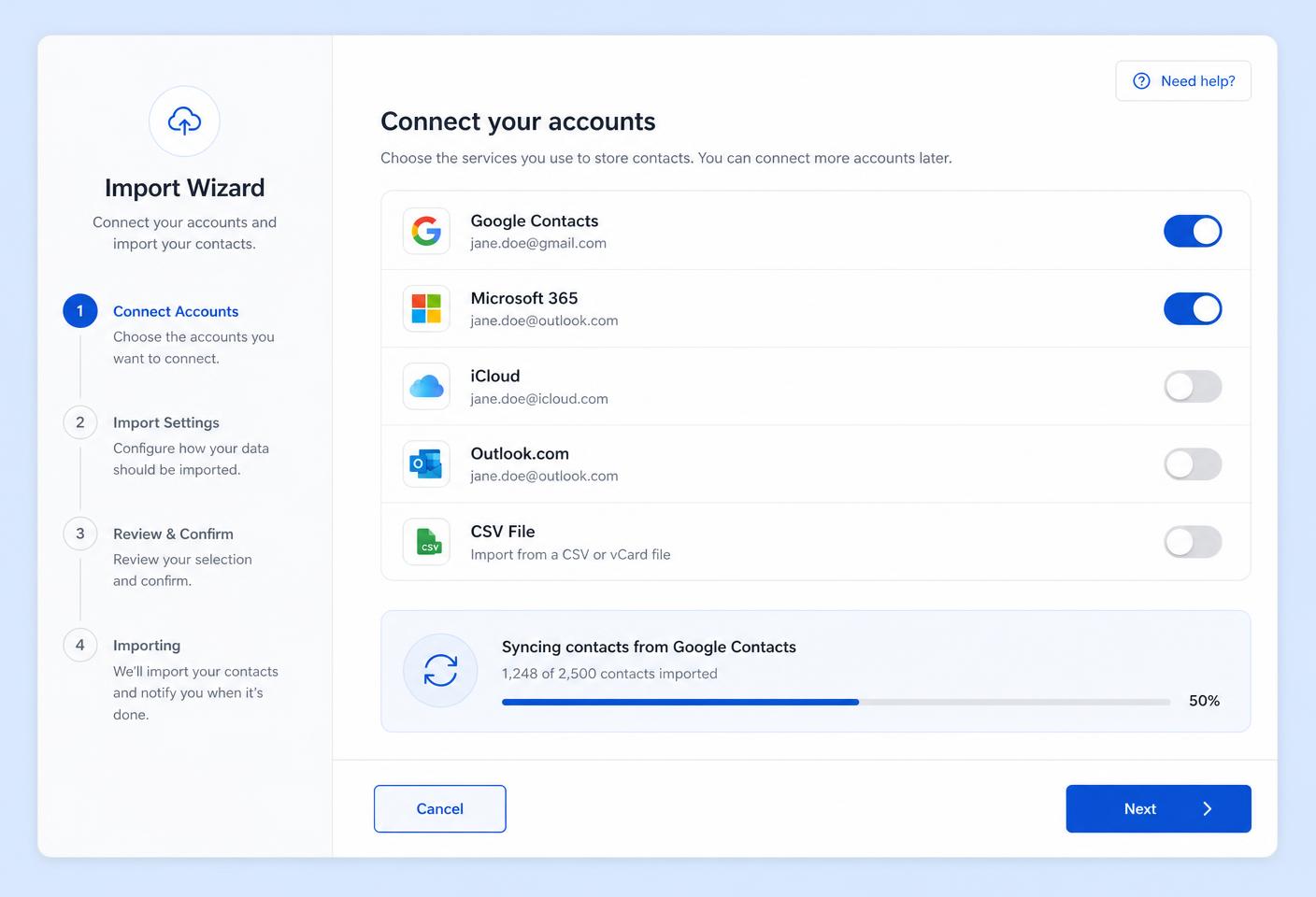
The import process
You choose what is connected and you can disconnect at any moment.
Pick a source from your dashboard and press Connect.
You are taken to that provider's own login and consent screen — we never see your password.
Choose which details to bring across, then confirm the import.
Contacts appear in your list within seconds, tagged with the source they came from.
Disconnect a source whenever you like; imported contacts stay yours to keep or delete.
Roadmap
Providers marked Beta or Coming soon are being wired up to their official APIs. Connected accounts activate automatically as each provider goes live — you will not need to do anything.
Create a free account, connect your first source in under two minutes and see every contact you own in one clean list.